As an Amazon Associate, we earn from qualifying purchases.
Dual Monitor Desk Setup - The Complete 2026 Guide
If you've ever caught yourself dragging windows back and forth across a single screen, you already know the pain. A dual monitor desk setup fixes that immediately. Whether you're editing video, managing spreadsheets, writing code, or just keeping Slack open while you actually work, two screens change everything.
But slapping two monitors on your desk without a plan leads to neck aches, cable chaos, and a workspace that feels cramped within a week. This guide walks you through every decision you need to make - desk sizing, monitor arms versus stands, cable management, and ergonomic positioning - so you get it right the first time.
How Wide Does Your Desk Need to Be
This is where most people underestimate. Two monitors need more room than you'd expect, especially once you account for depth, keyboard space, and the occasional coffee mug.
Here's a practical size breakdown:
Monitor Size
Minimum Desk Width
Recommended Desk Width
2x 24 inch
48 inches
55 inches
2x 27 inch
55 inches
60 inches
2x 32 inch
60 inches
72 inches
Mixed sizes (27 + 32)
58 inches
66 inches
Depth matters just as much as width. You want at least 20-30 inches of depth so the screens sit far enough back from your face - arm's length is the standard target, roughly 20-30 inches from your eyes to the screen surface. A shallow desk forces monitors too close and kills your eyes by lunchtime.
For most home office workers running two 27-inch monitors, a 60-inch wide desk with 28-30 inches of depth is the sweet spot. If you're a gamer or creative professional running larger screens, step up to 66-72 inches.
Standing Desks and Dual Monitor Stability
If you're using a sit-stand desk, wobble becomes a real concern once monitors are involved. The Desky Dual is one of the more popular options in 2026 because its dual-motor frame stays surprisingly stable even at maximum height. Cheaper single-motor standing desks can introduce noticeable sway when you adjust mid-session, which is genuinely distracting with two large screens in your line of sight.
Check out our full roundup of the best desks for home offices if you're still shopping for the right surface.
Featured
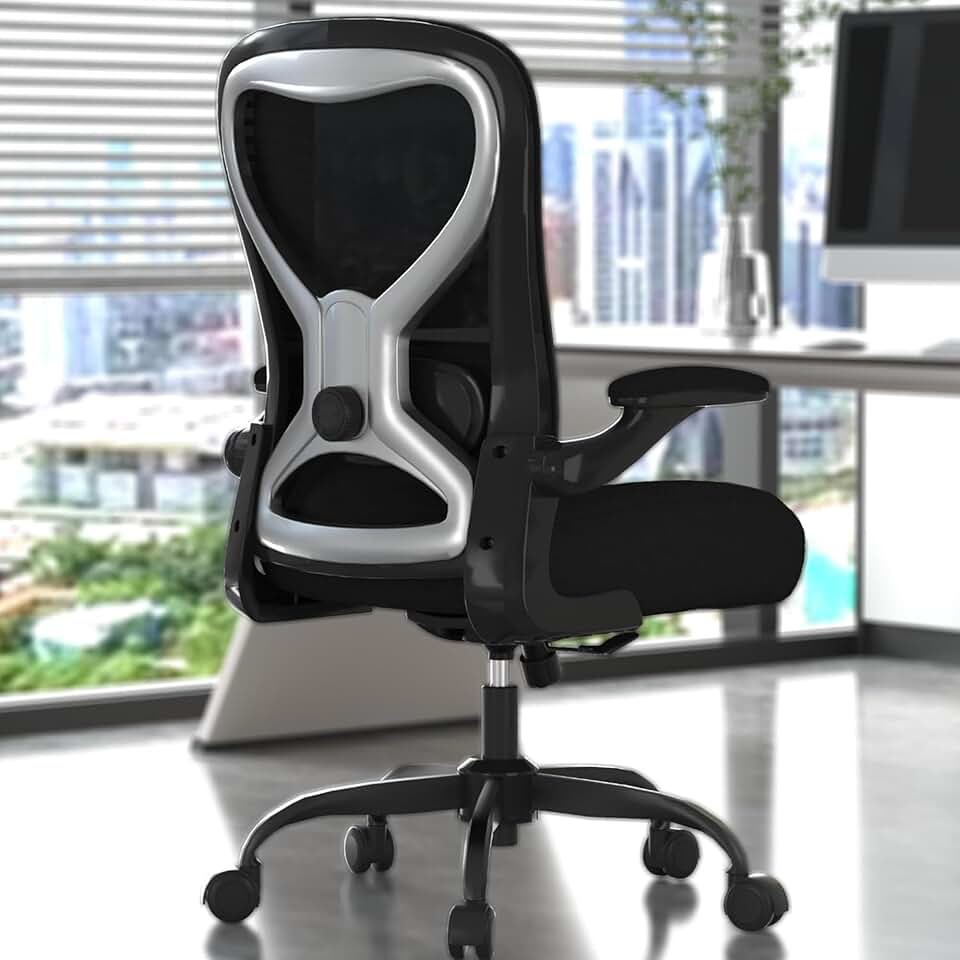
Office Desk Chair
Solid $90 ergonomics for 6-hour days - nothing more, nothing less
Monitor Arms vs. Stands - Which One Is Right for You
This choice defines how your setup looks and functions day to day. There's no universally correct answer, but there is a correct answer for your specific situation.
The Case for Monitor Arms
Monitor arms are the dominant choice in 2026 for good reason. A quality dual arm - like the Ergotron LX Dual or the Flexispot D8 - clamps to the back of your desk and holds both screens in the air, freeing up the entire desk surface underneath. That reclaimed space is genuinely useful.
The bigger benefit is adjustability. Gas spring arms (increasingly the standard in 2026) let you reposition your screens with one hand and no tools. Tilt, swivel, height, even rotation into portrait mode - all of it adjustable on the fly. If you share a desk with a partner, or if you switch between seated and standing positions throughout the day, this matters enormously.
Built-in cable management is another underrated win. Most quality arms route cables through internal channels, so the wires running from your monitors essentially disappear. It's one of the easiest ways to make a dual monitor setup look expensive without spending more money.
Arms do require one thing - a desk thick enough to clamp to, typically at least 1 inch thick, and ideally a desk edge that isn't too wide for the clamp jaw. Most solid desks handle this fine.
The Case for Monitor Stands
Stands are simpler, faster to set up, and more stable by default. If you know your monitors will never move from their current position and you have a wide enough desk to absorb the footprint, a good adjustable stand like the Dell MDS19 Dual Monitor Stand does the job cleanly.
Stands are also the better call for very heavy monitors. Some ultrawide or high-end displays exceed the weight ratings on consumer-grade monitor arms, so always check the spec sheet before you buy an arm.
The honest downside is footprint. Two separate monitor stands eat significant desk real estate, and even the best stands give you limited adjustability compared to arms.
Side-by-Side Comparison
Factor
Monitor Arms
Monitor Stands
Desk Space Used
Minimal - frees the surface
Moderate to significant
Adjustability
Full - tilt, swivel, height, rotation
Limited - usually height and tilt only
Cable Management
Built-in channels on most models
Basic, cables hang freely
Setup Complexity
Requires clamping and adjustment
Plug and play
Best For
Compact desks, ergonomic flexibility
Simple setups, heavy monitors
Budget Impact
$80 to $300 for dual arm
$30 to $150 for adjustable stand
Our recommendation for most people in 2026 - go with a gas spring dual monitor arm. The Ergotron LX Dual is worth every penny if your budget allows it. If you're keeping costs tight, the VIVO Dual Monitor Arm offers solid performance at a lower price point.
Ergonomic Monitor Positioning - Getting It Actually Right
This is the part most guides rush through, and it's the part that determines whether your neck hurts after eight hours or feels fine. Poor monitor positioning causes real, cumulative strain. Good positioning costs you nothing extra.
Your Primary Monitor
Place your primary monitor directly in front of you, centered with your nose. The top edge of the screen should sit at or slightly below your horizontal eye line - roughly 2-3 inches below where your eyes naturally rest when you're sitting up straight. This prevents you from tilting your head up all day, which compresses the cervical spine over time.
Distance-wise, aim for arm's length - 20 to 30 inches from your face. If your monitor is 27 inches or larger, lean toward the far end of that range.
Your Secondary Monitor
Here's where most dual monitor setups go wrong. People place both screens flat and parallel, forcing a constant 90-degree head turn to check the secondary display. Do this for a few weeks and your neck will tell you about it.
Instead, angle your secondary monitor 20-30 degrees inward, creating a gentle arc. The secondary screen should face toward your nose, not toward the wall. This makes the head turn feel natural rather than wrenching.
If you use your secondary screen infrequently - just for reference documents or chat windows - push it slightly further out, maybe 30-35 degrees. If you switch between screens constantly throughout the day, narrow that angle to 15-20 degrees.
Matching Your Screens
Mixmatched brightness between two monitors causes subtle but real eye fatigue. Your brain is constantly recalibrating as your eyes move between screens. Take 10 minutes to match brightness and color temperature across both displays. Most monitors have an OSD menu where you can dial this in directly. If your monitors support it, set both to around 6500K color temperature for daytime work.
Stacked vs. Side-by-Side Layouts
For most workflows, side-by-side is standard. But stacked vertical layouts work exceptionally well for developers and writers. A primary screen at normal height with a secondary screen mounted above in portrait or landscape mode gives you a long vertical scroll on one axis - perfect for reading documentation while coding below it.
Monitor arms are essentially required for stacked setups. Trying to stack monitors on stands creates an unstable tower that isn't safe for either the screens or your desk.
ELABEST X100 Mesh Chair with Footrest
17-point adjustability and a footrest at $320 - finally a tall-person chair that delivers
Cables are the silent enemy of a great-looking setup. Two monitors mean at minimum two power cables and two video cables, plus keyboard, mouse, speakers, and whatever else lives on your desk. Without a system, this becomes a nest.
The Four-Part Cable Management System
1. Under-desk cable tray
Mount a cable management tray or raceway underneath your desk surface. This is where power strips live, along with any excess cable length. The J-channel raceway style works well for routing cables along the desk underside from left to right.
2. Cable sleeves or spiral wrap
Bundle the cables running from your monitors down to the tray using cable sleeves. These turn six individual wires into one tidy bundle. Black sleeves disappear against most desk frames.
3. Desk grommets
If your desk has a grommet hole (many do), route cables through it cleanly. If yours doesn't, adhesive cable clips along the underside edge work as an alternative.
4. Wireless peripherals
The single fastest way to reduce cable count is to go wireless for your keyboard and mouse. The Logitech MX Keys S and MX Master 3S combo is popular in 2026 for home office workers - both connect via Bluetooth or the Logi Bolt receiver, and the mouse handles multi-device switching natively if you use more than one computer.
Docking Stations for Laptop Users
If your dual monitor setup connects to a laptop, a single Thunderbolt 4 or USB-C dock can replace almost every individual cable. The Caldigit TS4 or OWC Thunderbolt Go Dock connect to your laptop with one cable and distribute power, video signal to both monitors, ethernet, and USB peripherals from there. This reduces your laptop's cable count to one, which is genuinely satisfying.
Bias Lighting Behind Monitors
This isn't strictly cable management, but since you're already routing cables, adding LED bias lighting behind your monitors is worth doing at the same time. A strip of warm-white or adjustable LED behind each screen softens the contrast between a bright display and a dark wall, which meaningfully reduces eye fatigue during long sessions. The Govee Flow Pro or a simple Philips Hue gradient strip does the job well.
Choosing Your Monitors - What to Look For in 2026
Not every monitor is ideal for a dual setup. Here are the key specs that matter:
Panel type - IPS panels offer the best color accuracy and wide viewing angles, which matters more on a secondary monitor you're viewing slightly off-axis. The Dell UltraSharp U2723QE remains one of the strongest productivity monitors available and looks excellent when paired with a second unit of the same model.
VESA mount compatibility - If you're using monitor arms, your screen needs VESA mounting holes on the back. Most monitors have 75x75mm or 100x100mm patterns. Check before you buy - a small number of ultra-thin displays are not VESA compatible.
Thin bezels - When two monitors sit side by side, thick bezels create a visual gap that's genuinely distracting. Look for monitors marketed as "frameless" or "near-borderless" for the cleanest look.
Matching models - Using two of the same monitor eliminates color temperature mismatches, bezel differences, and height alignment headaches. It's worth the planning.
Ergonomic Office Chair
Solid $189 starting point - not your forever chair
A well-planned dual monitor desk setup genuinely changes how you work. The productivity gains are real, but so are the comfort benefits when you get the ergonomics right. The most important decisions are desk size (don't go smaller than you need), monitor arm versus stand (arms win for most setups), and monitor positioning (angle that secondary screen inward).
Take your time on the cable management step - it's the detail that separates a setup that looks professional from one that looks like a server room exploded. Once everything is dialed in, you'll wonder how you ever managed with one screen.
For more help building out your home office, check out our chair recommendations and full desk guide to make sure the rest of your setup matches the quality of your new dual monitor arrangement.
Veken Large Adjustable Electric Standing Desk
A $210 electric desk that punches above its price - with one visible seam
For two 24-inch monitors, you can technically fit on a 48-inch wide desk, but it will feel cramped. A 55 to 60-inch wide desk is the practical minimum for two 24-27 inch monitors with room for a keyboard, mouse, and peripherals. Depth matters too - aim for at least 28 inches so screens sit far enough from your eyes.
You don't need one, but a dual monitor arm like the Ergotron LX Dual is strongly recommended. Arms free up significant desk surface, let you angle each screen independently for ergonomic comfort, and often include cable routing channels that make your setup look much cleaner. Stands are simpler and cheaper but take up more space and offer less flexibility.
Angle your secondary monitor 20-30 degrees inward toward your nose rather than placing it flat and parallel with your primary screen. This creates a gentle arc that makes head turns feel natural. If you glance at the secondary screen frequently throughout the day, use a narrower 15-20 degree angle. For occasional reference use, 30-35 degrees works fine.
Use a four-part approach - an under-desk cable tray to house your power strip and excess cables, cable sleeves to bundle the monitor cables into a single run, desk grommets or adhesive clips to route cables neatly to the tray, and wireless peripherals to eliminate keyboard and mouse cables entirely. If you use a laptop, a single Thunderbolt dock like the Caldigit TS4 can replace most individual cables with one connection.
Yes, using two identical monitors is highly recommended. Matching models eliminates color temperature differences between screens, ensures bezel heights align perfectly when positioned side by side, and removes the need to manually calibrate brightness to match two different panels. The Dell UltraSharp U2723QE is a popular pairing choice for productivity setups in 2026.
Absolutely, and it works very well. Just pay attention to stability - cheaper single-motor standing desks can wobble noticeably when two monitors are mounted, especially at maximum height. The Desky Dual is a dual-motor option that handles the extra weight and stays stable through height adjustments. Make sure your monitor arm is rated for the weight of both screens combined.
Both screens should sit roughly 20 to 30 inches from your eyes - approximately arm's length. For 27-inch or larger monitors, aim for the far end of that range. The top of each screen should sit at or slightly below your natural eye line to prevent upward head tilting, which causes neck strain over long work sessions.